
Fact-checked by the digital reach solutions editorial team
Quick Answer
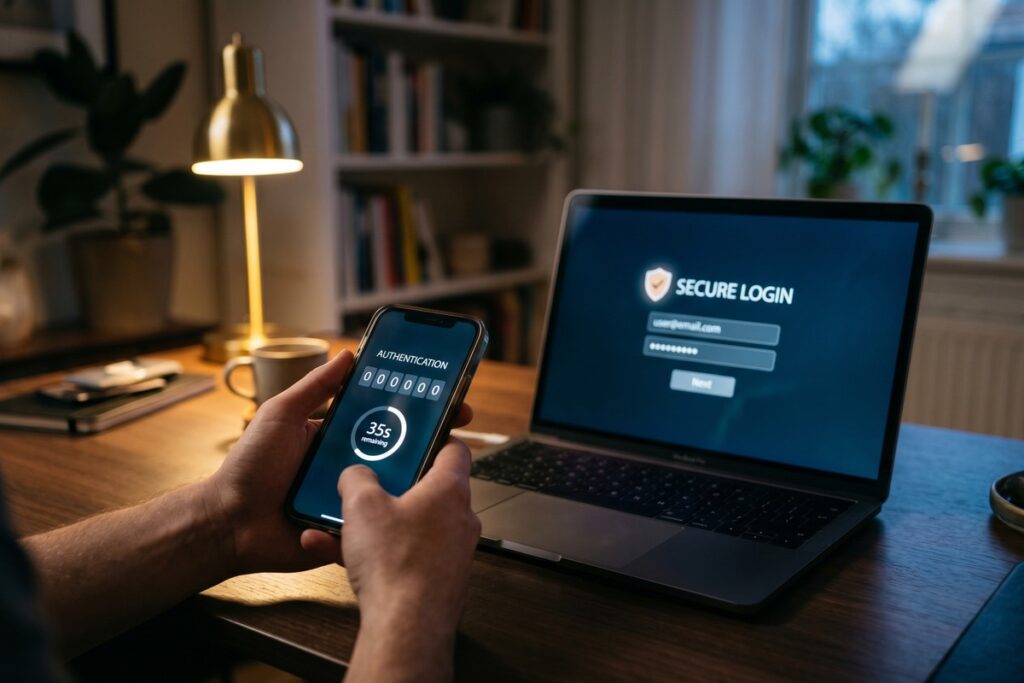
To set up two factor authentication, go to your account’s security settings, select “Two-Factor Authentication,” and choose a method — app-based codes are most secure. As of July 2025, 2FA blocks over 99.9% of automated account attacks according to Microsoft. The entire process takes under 5 minutes per account.
To set up two factor authentication means adding a second verification step beyond your password — so even if your credentials are stolen, attackers cannot access your account. According to Microsoft’s security research, enabling 2FA stops 99.9% of automated credential attacks before they succeed.
With data breaches hitting record highs in 2025, a password alone is no longer a sufficient defense for any online account.
What Exactly Is Two-Factor Authentication?
Two-factor authentication (2FA) is a security method that requires two separate forms of identity verification before granting access. The first factor is something you know — your password. The second is something you have or are, such as a one-time code, a physical key, or a biometric scan.
The three core 2FA categories are knowledge (PIN or password), possession (phone app or hardware key), and inherence (fingerprint or face ID). Combining any two of these categories dramatically raises the cost and complexity of any attack. This layered approach is endorsed by the National Institute of Standards and Technology (NIST) as a foundational security control.
Platforms including Google, Apple, Meta, and Microsoft all support 2FA natively. Financial institutions regulated by bodies like the FDIC and CFPB increasingly require it for online banking access. If you manage digital security as a freelancer or remote worker, 2FA is your single most impactful upgrade.
Key Takeaway: Two-factor authentication requires 2 independent identity proofs before granting access, making stolen passwords alone useless. NIST’s Cybersecurity Framework classifies 2FA as a baseline protective measure for all account types.
Which Type of 2FA Should You Use?
Authenticator apps are the most secure everyday 2FA method for most users. Hardware security keys (like YubiKey) are stronger but less convenient for casual use. SMS text message codes are the weakest option, yet still far better than no 2FA at all.
SMS-based 2FA is vulnerable to SIM-swapping attacks, where criminals trick carriers into transferring your phone number. The FBI’s Internet Crime Complaint Center (IC3) has flagged SIM swapping as a growing threat, with losses exceeding $68 million reported in a single year. Where possible, replace SMS codes with an authenticator app like Google Authenticator, Authy, or Microsoft Authenticator.
Authenticator Apps vs. SMS vs. Hardware Keys
| Method | Security Level | Setup Time |
|---|---|---|
| Authenticator App | High — offline TOTP codes | 2–3 minutes |
| Hardware Key (YubiKey) | Highest — phishing-resistant | 5–10 minutes |
| SMS Text Code | Low-Medium — SIM-swap risk | 1–2 minutes |
| Email OTP | Low — depends on email security | 1–2 minutes |
| Biometric (Face/Fingerprint) | High — device-bound | Already enabled on most devices |
For most people, a Time-based One-Time Password (TOTP) app provides the best balance of security and usability. TOTP codes refresh every 30 seconds and work without a cell signal, which eliminates the carrier-dependency risk of SMS. Understanding 2FA also pairs well with exploring how passkeys compare to traditional passwords as a longer-term credential strategy.
Key Takeaway: Authenticator apps generate 30-second TOTP codes that work offline and resist SIM-swap attacks, making them the recommended upgrade over SMS 2FA. CISA recommends app-based or hardware MFA as the standard for all personal and business accounts.
How Do You Set Up Two-Factor Authentication Step by Step?
To set up two factor authentication on any major platform, navigate to Settings → Security → Two-Factor Authentication, select your preferred method, and follow the on-screen prompts. The process is nearly identical across Google, Apple ID, Facebook, and most banking apps.
Step-by-Step Setup Using an Authenticator App
- Download Google Authenticator, Authy, or Microsoft Authenticator on your smartphone.
- Log in to the account you want to protect and open its Security Settings.
- Select “Two-Factor Authentication” or “Two-Step Verification.”
- Choose “Authenticator App” as your method.
- Scan the QR code displayed on-screen using your authenticator app.
- Enter the 6-digit code from the app to confirm the link.
- Save your backup codes in a secure location (a password manager or printed sheet kept offline).
Backup codes are critical. If you lose your phone without saving them, account recovery can take days and requires proof of identity. Most platforms provide 8–10 single-use backup codes at setup — treat them like a spare house key.
“Turning on MFA is one of the most effective steps an individual can take. It significantly reduces the risk of account compromise — even when passwords are exposed in a breach.”
Key Takeaway: Setting up 2FA via an authenticator app takes fewer than 5 minutes and requires scanning one QR code. Always save the 8–10 backup codes provided — CISA advises storing them offline in case your primary device is lost.
Which Accounts Should You Prioritize?
Start with accounts that hold financial, health, or personal identity data — these carry the highest risk if compromised. Email accounts are the single most critical target, because a compromised inbox can reset passwords for every other service you own.
Prioritize in this order:
- Email (Gmail, Outlook, Apple Mail)
- Financial accounts (banking, PayPal, Venmo, brokerage accounts)
- Social media (Facebook, Instagram, LinkedIn, X)
- Work accounts (Microsoft 365, Google Workspace, Slack)
- Cloud storage (iCloud, Google Drive, Dropbox)
- Domain registrars and hosting (especially if you run a business online)
For small business owners, securing work tools is especially urgent. Verizon’s 2024 Data Breach Investigations Report found that 68% of breaches involved a human element — stolen credentials being the top vector. If you manage a team, enforcing 2FA at the organizational level is as important as individual adoption. This is especially relevant if your team uses tools covered in guides like automating your small business with AI tools.
Key Takeaway: Email accounts are the highest-priority target for 2FA because they control password resets for all other services. Verizon’s DBIR found 68% of breaches involve stolen or weak credentials — securing email and financial accounts first delivers the greatest risk reduction.
What Are the Most Common Mistakes When Setting Up 2FA?
The most frequent mistake is enabling 2FA but never saving backup codes — leaving users locked out permanently if their device is lost. The second most common error is leaving SMS as the 2FA method for high-value accounts even when an app-based option is available.
Other critical errors include:
- Using the same phone number for both account login and SMS 2FA (single point of failure).
- Storing backup codes in the same cloud account they are meant to protect.
- Skipping 2FA for “less important” accounts that share passwords with critical ones.
- Not updating 2FA methods after changing phones or phone numbers.
Password reuse amplifies every 2FA gap. If one breached account’s password unlocks another account that lacks 2FA, the entire security chain fails. Using a password manager alongside 2FA closes this loop. Tools like 1Password, Bitwarden, and Dashlane generate unique passwords per site and can store TOTP codes natively.
For professionals managing multiple digital tools and platforms, these habits also reduce exposure when working on public or unsecured networks.
Key Takeaway: The single most dangerous 2FA mistake is failing to save backup codes — users with no backup access face account recovery delays of 48–72 hours or permanent loss. Store codes offline and audit your 2FA settings after any device change.
Frequently Asked Questions
Is it safe to use SMS for two-factor authentication?
SMS 2FA is better than no 2FA, but it is the weakest available method. SIM-swap attacks allow criminals to intercept your text codes by hijacking your phone number with your carrier. Use an authenticator app whenever the platform supports it.
What happens if I lose my phone after setting up 2FA?
Use the backup codes you saved during setup to regain access without your phone. If you did not save backup codes, most platforms offer identity-based account recovery, which can take 24–72 hours. This is why saving backup codes at setup is non-negotiable.
Can I set up two factor authentication on multiple devices?
Yes. Most authenticator apps, including Authy and Microsoft Authenticator, support multi-device sync so your codes are accessible on a tablet or backup phone. Google Authenticator added account transfer features in 2023, allowing QR-based migration to a new device.
Does 2FA protect against phishing attacks?
Standard TOTP-based 2FA reduces phishing risk but does not eliminate it — a sophisticated phishing site can relay your code in real time before it expires. Hardware keys using the FIDO2 or WebAuthn standard are the only 2FA method that is fully phishing-resistant.
How do I set up two factor authentication on Google?
Go to myaccount.google.com, select Security, then “2-Step Verification,” and click Get Started. Google supports authenticator apps, hardware keys, and Google Prompts (push notifications to your Android device). The setup wizard completes in under 3 minutes.
Is two-factor authentication the same as multi-factor authentication?
2FA is a specific type of multi-factor authentication (MFA) that uses exactly two factors. MFA is the broader term that can include three or more verification steps. For most personal accounts, 2FA provides sufficient protection without adding friction.
Sources
- Microsoft Security Blog — One Simple Action to Prevent 99.9% of Account Attacks
- CISA — Multi-Factor Authentication (MFA) Guidance
- NIST — Cybersecurity Framework
- Verizon — 2024 Data Breach Investigations Report (DBIR)
- FBI IC3 — SIM Swapping Public Service Announcement
- Google — Turn On 2-Step Verification
- Apple Support — Two-Factor Authentication for Apple ID