
Fact-checked by the digital reach solutions editorial team
Quick Answer
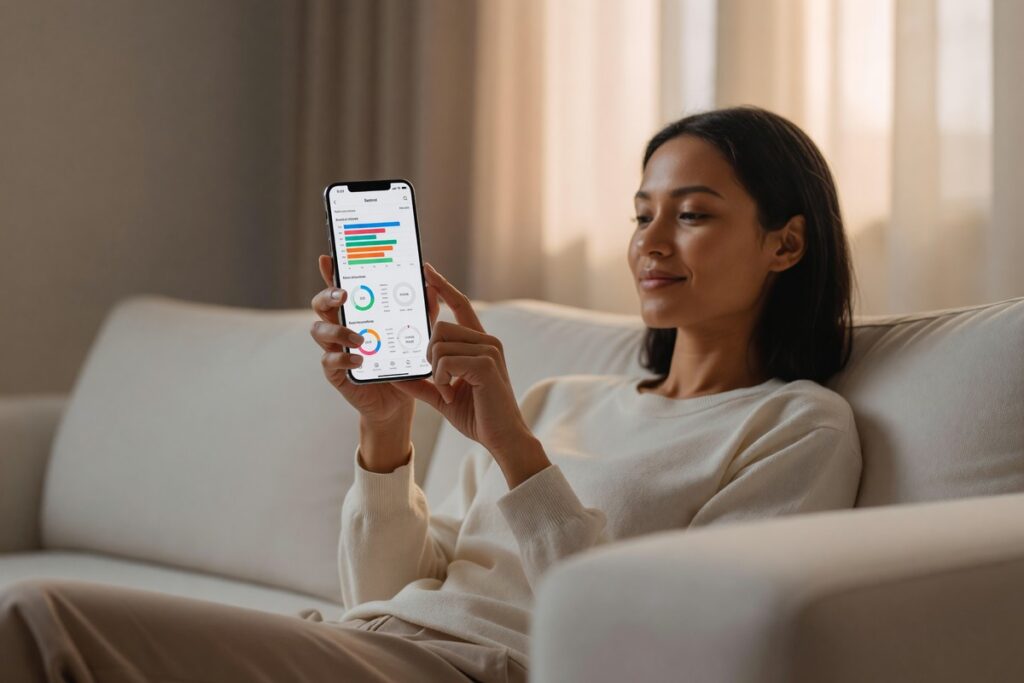
As of July 2025, both iPhone and Android include free built-in phone screen time tools that require no downloads. Apple’s Screen Time and Google’s Digital Wellbeing let you set daily app limits, schedule downtime, and view usage reports. Most users who activate these features reduce daily phone use by up to 30 minutes within the first week.
Phone screen time tools are built into every modern smartphone — no third-party app required. According to Pew Research Center data, 85% of Americans now own a smartphone, yet most people have never once opened the screen time dashboard quietly sitting inside their device settings. It’s just there. Waiting. These tools track usage, block distractions, and enforce limits — all completely free.
Average daily screen time now exceeds 4 hours for adults in the United States. That’s not a parenting problem anymore — that’s a genuinely widespread digital health issue, and honestly, most of us feel it.
What Are the Built-In Phone Screen Time Tools on iOS and Android?
Both major mobile platforms ship with native screen time management. Apple calls its system Screen Time; Google went with Digital Wellbeing. Different names, same basic idea — app usage reports, daily limits, downtime scheduling, content restrictions, all sitting inside your device settings without needing to install a single thing.
Apple’s Screen Time arrived with iOS 12 back in 2018 and has been quietly improved with every major update since. Find it under Settings > Screen Time on any iPhone or iPad running iOS 12 or later. Google launched Digital Wellbeing that same year — first on Pixel devices, now standard on Android 9 and above — under Settings > Digital Wellbeing & Parental Controls.
Core Features Shared by Both Platforms
Here’s the thing: both platforms cover the same basic ground. Daily usage breakdowns by app category, per-app timers that either warn you or lock access when a limit hits, and scheduled quiet periods that silence notifications or block apps entirely. The fundamentals are nearly identical.
Where they actually differ is execution. Apple’s Screen Time throws in Communication Limits for managing who your kids can contact, while Google’s Digital Wellbeing has a genuinely clever Focus Mode you can flip on straight from your notification shade — no schedule needed, just instant focus when you need it.
Key Takeaway: Apple Screen Time and Google Digital Wellbeing are free, built-in phone screen time tools available on iOS 12+ and Android 9+. According to Apple’s official Screen Time documentation, setup takes under 5 minutes directly from device settings.
How Do You Set Up Screen Time on an iPhone?
Go to Settings > Screen Time and tap “Turn On Screen Time.” A setup wizard walks you through three options: set it up for yourself, set it up for a child, or skip the wizard and just configure everything manually. For personal use, tap “This is My iPhone.”
Once it’s running, your iPhone starts logging everything immediately. Give it 24 hours and you’ll have a full picture — total screen time, how many times you picked your phone up, which apps quietly devoured the most time. From there, tap “App Limits” to drop a daily cap on any category you want. Social Networking, Entertainment, Games, or one specific app you keep mindlessly opening at 11pm. You know the one.
Setting a Screen Time Passcode
This step matters more than people realize. Set a separate Screen Time Passcode — a four-digit code that’s completely different from your device PIN. Without it, a single tap on “Ignore Limit” blows right past everything you just set up. For personal use, this is the difference between a vague intention and an actual boundary. For families, it’s non-negotiable.
Apple also ties Screen Time into Family Sharing, so parents can adjust limits remotely for up to six family members straight from their own iPhone. Changes push through iCloud in seconds, as outlined in Apple’s Family Sharing support documentation.
Key Takeaway: iPhone Screen Time becomes enforceable only when a 4-digit Screen Time Passcode is set — without it, limits are easy to dismiss. Apple’s Screen Time setup guide recommends enabling this passcode as the first step for any serious usage control.
How Do You Activate Digital Wellbeing on Android?
Open Settings, scroll down to Digital Wellbeing & Parental Controls, and tap “Show Your Data.” That’s it — your first usage dashboard appears immediately, a color-coded hourly breakdown of exactly where your time went. No account login, no setup wizard. It just works on-device.
To set a timer on a specific app, tap that app’s slice on the chart and hit “Set Timer.” Pick your hours and minutes, confirm, and Android handles the rest. When you’re getting close, you’ll get a notification. When the limit actually hits? The app icon goes gray on your home screen. Not a pop-up. Not a gentle nudge. A visibly grayed-out icon that makes you stop and think. According to Google’s Digital Wellbeing research hub, that visual graying is intentional friction design — meant to create a pause before you override it.
Using Focus Mode and Bedtime Mode
Focus Mode lets you pause specific apps on the spot — perfect for meetings or that stretch of deep work where you just can’t afford distractions — without committing to a timer. Bedtime Mode is different: it shifts your screen to grayscale and silences notifications on whatever schedule you set, specifically targeting the kind of sleep-disrupting stimulation that happens when you’re doomscrolling at midnight. Both live right inside the Digital Wellbeing menu.
For families, Google Family Link extends Digital Wellbeing to kids’ devices — remote app approval, location sharing, daily screen time limits, all managed from a parent’s phone. It works on Android 7 and above, as detailed on Google’s Family Link product page.
Key Takeaway: Android’s Digital Wellbeing grays out app icons when timers expire, creating a visual barrier that Google’s own research identifies as more effective than pop-up alerts. App timers can be set in under 30 seconds per app from the Digital Wellbeing dashboard.
| Feature | Apple Screen Time (iOS 16+) | Google Digital Wellbeing (Android 12+) |
|---|---|---|
| Usage Dashboard | Hourly breakdown, weekly averages, pickup count | Hourly chart, unlock count, notification tally |
| App Limits | Per-app or per-category, 1-minute minimum | Per-app only, 5-minute minimum |
| Downtime Scheduling | Daily schedule, allows specific apps during downtime | Bedtime Mode with grayscale + Do Not Disturb |
| Focus / Work Mode | Focus Modes (iOS 15+) in Settings > Focus | Focus Mode toggleable from notification shade |
| Parental Controls | Family Sharing + Screen Time Passcode, up to 6 members | Google Family Link, Android 7+ required |
| Content Restrictions | App Store ratings, web content filters, explicit content | App approval via Family Link only |
| Cost | Free, built-in | Free, built-in |
Which Phone Screen Time Settings Actually Change Behavior?
Look, just staring at your usage data doesn’t change anything. The settings that actually move the needle are App Limits with a passcode, Downtime or Bedtime Mode, and Notification summaries. Friction-based tools — the ones that force a deliberate override — are what produce real behavioral change. A dashboard is just information.
Research from the American Psychological Association found that constant smartphone notifications are directly linked to elevated stress levels. That’s why scheduled notification batching matters just as much as app limits. Both iOS and Android let you group notifications into scheduled summaries — delivered once or twice a day instead of pinging you every four minutes.
“The most effective digital wellbeing interventions are not the ones that track usage — they’re the ones that introduce a moment of pause between the impulse and the action. A grayed-out icon or a one-tap confirmation is enough friction to break an automatic habit loop.”
If you only do one thing after reading this, make it Downtime on iOS or Bedtime Mode on Android — set it from 10 PM to 7 AM and leave it. Late-night scrolling is the single usage window most consistently tied to sleep disruption, and this setting eliminates it without touching your daytime access at all. Pair that with a solid device security setup so those restrictions can’t just be walked around by someone who knows your PIN.
Key Takeaway: Enabling Downtime or Bedtime Mode for an 8-hour overnight window is the single highest-impact phone screen time setting for most adults. The APA links late-night smartphone use directly to elevated stress — blocking access automatically removes the decision entirely.
How Do You Use Phone Screen Time Tools to Manage a Child’s Device?
Both Apple’s Family Sharing and Google Family Link let parents set and monitor screen time limits remotely on a child’s device. No subscription needed. These are genuinely the most capable phone screen time tools available without paying a dime to a third-party parental control service.
On iOS, enroll a child’s Apple ID in Family Sharing (up to 6 members) through Settings > Your Name > Family Sharing. Once that’s linked, your iPhone gets a dedicated Screen Time view for each child — usage totals, app categories, and the ability to push limit changes instantly from wherever you are. On Android, install Google Family Link on both devices. Worth knowing: in the US, the child must be under 13 to use a supervised account, per Google Family Link’s FAQ.
Content Filtering Across Both Platforms
Apple’s Screen Time includes Content & Privacy Restrictions — block explicit websites, restrict App Store purchases by age rating (4+, 9+, 12+, 17+), prevent kids from changing account settings. These settings follow the child’s Apple ID, not just one device, which is a genuinely useful detail if your kid has both an iPhone and an iPad.
Now, if you’re managing multiple communication tools across a household or a team, the same discipline applies there too — this guide on common business group chat mistakes gets into how unchecked notification habits erode focus just as badly as unrestricted app access.
Key Takeaway: Apple Family Sharing manages up to 6 accounts with remote Screen Time control, while Google Family Link supervises Android devices for children under 13 — both tools are free and require no third-party subscription for core parental controls.
Frequently Asked Questions
Can someone bypass Screen Time or Digital Wellbeing limits on their own phone?
Honestly, yes — without a passcode, both systems are pretty easy to walk right past. On iOS, set a Screen Time Passcode that’s completely different from your device PIN; that’s what actually prevents someone from just switching the whole thing off. On Android, app timers can be dismissed with one tap unless you’ve got Family Link parental controls active.
Do phone screen time tools track every app, including browsers?
Yes, both Apple Screen Time and Google Digital Wellbeing track all installed apps — Safari, Chrome, any browser you’ve got — as individual entries. Time spent on websites inside a browser gets logged under that browser’s total, not broken out by site. If you want site-level tracking, you’d need a separate tool for that.
Does enabling Screen Time slow down my phone?
No measurable performance impact has been reported by Apple or Google. Both systems run as lightweight background processes, logging everything locally on the device without needing a constant internet connection. You won’t notice it running.
Can I use phone screen time tools without setting up parental controls?
Absolutely. These tools were designed for individual adult use first — parental controls are just one layer on top. Set personal app limits, schedule downtime, check your weekly report. None of that requires a family account or a child profile. Just select “This is My iPhone” during iOS setup, or skip the Family Link flow on Android, and you’re good to go.
What happens when a screen time limit expires — is the app completely blocked?
On iOS, you get a lock screen with options to ignore the limit for 15 minutes, one hour, or the rest of the day — though those options only appear if no Screen Time Passcode is set. On Android, the app icon grays out and tapping it shows a “Timer expired” message with an option to add more time. Neither platform will force-close an app you’re already using mid-session when the timer ends.
Do these tools work when a child switches to a different device?
On iOS, yes — Screen Time limits tied to a child’s Apple ID follow them across every Apple device signed into that account. On Android, it’s a different story. Family Link limits only apply to the specific enrolled device, so switching to an unenrolled device removes restrictions entirely. It’s a known limitation of the Android system and worth keeping in mind.
Sources
- Apple Support — Use Screen Time on your iPhone or iPad
- Google — Digital Wellbeing Overview and Research
- Google — Family Link Product Page
- Apple Support — Set up Family Sharing
- Pew Research Center — Mobile Technology and Home Broadband 2021
- American Psychological Association — Stress in America: Technology and Social Media
- Google Family Link — Frequently Asked Questions