
Fact-checked by the digital reach solutions editorial team
Quick Answer
Android quick settings tricks let you unlock features most users never discover, including tile reordering, one-tap hotspot sharing, and developer shortcuts hidden behind the panel. As of July 2025, Android 14 and 15 support up to 16 customizable quick settings tiles, yet the average user interacts with fewer than 4 default tiles regularly.
Android quick settings tricks are one of the fastest ways to transform how you use your phone daily. According to Google’s Android 14 release notes, the Quick Settings panel received significant redesign updates affecting tile management, brightness controls, and media output switching — changes most users scrolled past without noticing.
If you are still tapping through menus for settings you could reach in one swipe, this guide will change that immediately.
What Are Android Quick Settings Tiles and How Do They Work?
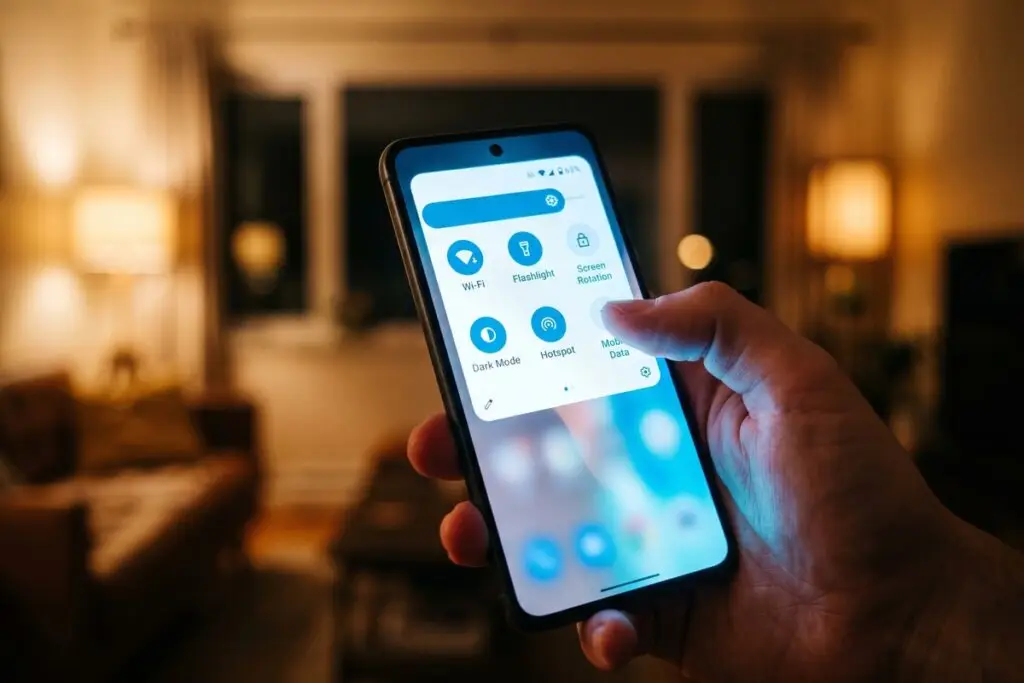
Android’s Quick Settings panel is the grid of shortcut tiles that appears when you swipe down twice from the top of your screen — or with one swipe using two fingers. Each tile toggles a system function instantly, without opening the full Settings app.
Most Android devices ship with between 6 and 8 default visible tiles, including Wi-Fi, Bluetooth, Airplane Mode, and Do Not Disturb. But the full tile library — accessible by tapping the pencil or edit icon — contains dozens of options depending on your device manufacturer and Android version.
Manufacturer Differences Matter
Samsung’s One UI, Google’s Pixel UI, and OnePlus’s OxygenOS each extend the default tile library with proprietary options. Samsung, for example, adds tiles for DeX mode, Edge panels, and Secure Folder that do not exist on stock Android. Understanding your specific UI layer is the first step to unlocking the full tile set — and if you want to push deeper into system-level customization, exploring Android developer options that make your phone feel brand new is the natural next step.
Key Takeaway: Android Quick Settings panels support up to 16 active tiles on most Android 14+ devices, yet the majority of users never edit the default layout, missing dozens of one-tap shortcuts built directly into their device.
How Do You Customize Your Quick Settings Tile Layout?
Customizing your Quick Settings panel takes under two minutes and permanently speeds up your most repeated phone interactions. To start, swipe down twice to fully expand the panel, then tap the pencil (edit) icon — usually located in the bottom-left or bottom-right corner depending on your device.
A drag-and-drop editor appears showing your active tiles at the top and available tiles below. You can drag unused tiles upward to activate them and drag existing ones down to remove them. Changes save automatically when you exit the editor.
High-Value Tiles Most Users Never Activate
- Screen Record: Starts a screen recording instantly without navigating any menus.
- One-Handed Mode: Shrinks the display for single-thumb reach — useful on phones larger than 6.5 inches.
- Focus Mode / Bedtime Mode: Links directly to Digital Wellbeing controls. Pairs well with understanding the full comparison between iPhone Focus Mode and Android Bedtime Mode.
- Color Inversion / Extra Dim: Reduces eye strain below the standard brightness floor.
- Near Share (Nearby Share): Android’s peer-to-peer file transfer, renamed and improved in Android 14.
- Data Saver: Blocks background data usage with a single tap — critical for users on limited data plans.
According to Google’s official Android 14 feature overview, the Quick Settings editor was redesigned specifically to make tile discovery faster, reducing the steps required to access the full tile library from three taps to one.
Key Takeaway: Activating underused tiles like Screen Record and Extra Dim takes under 2 minutes using the built-in drag-and-drop editor. Android 14’s redesigned tile editor reduces the setup process to a single tap, making customization accessible to every skill level.
What Advanced Android Quick Settings Tricks Do Power Users Actually Use?
Beyond tile reordering, several advanced Android quick settings tricks remain almost entirely unknown to casual users — including long-press shortcuts, custom tile injection via third-party apps, and brightness slider behavior changes.
Long-pressing any active tile does not just toggle it — on most Android devices running Android 12 or later, it opens that tile’s dedicated settings page directly. Long-pressing the Wi-Fi tile opens the Wi-Fi settings screen. Long-pressing Do Not Disturb opens the full DND schedule editor. This single behavior eliminates most multi-step navigation sequences.
Brightness Slider Hidden Behavior
The brightness slider in Quick Settings has a hidden auto-brightness toggle embedded directly in it. On Pixel devices and many Samsung Galaxy phones, tapping the sun icon on the left of the slider activates or deactivates adaptive brightness without opening any menu. Most users navigate to Settings > Display to do this manually, unaware the shortcut exists inside the panel itself.
Internet Tile: The Underused Hub
Android 12 replaced the separate Wi-Fi and Mobile Data tiles with a single unified Internet tile. Tapping it opens an inline card allowing you to switch between Wi-Fi networks and mobile data without leaving the panel. This is significantly faster than the older approach and eliminates a common workflow that previously required opening the Settings app entirely.
“The Quick Settings panel is one of the most powerful productivity surfaces on Android, but most users treat it like a remote control with only two buttons. The long-press behavior alone eliminates at least five common navigation sequences most people perform every single day.”
Key Takeaway: Long-pressing any Quick Settings tile on Android 12+ opens that feature’s dedicated settings page in 1 tap instead of 3–5. According to Android Authority’s quick settings deep-dive, this single trick eliminates the most common navigation inefficiencies for daily users.
| Quick Settings Trick | Android Version Required | Time Saved Per Day (Est.) |
|---|---|---|
| Long-press tile to open settings | Android 12+ | 30–60 seconds |
| Unified Internet tile switching | Android 12+ | 15–30 seconds |
| Two-finger swipe full panel open | Android 9+ | 10–20 seconds |
| Custom tile drag-and-drop editor | Android 10+ | 20–45 seconds |
| Auto-brightness toggle in slider | Android 11+ | 10–15 seconds |
| Media output tile switching | Android 11+ | 15–25 seconds |
Which Quick Settings Tiles Protect Your Security and Privacy?
Several Android quick settings tricks directly strengthen your device’s privacy posture — and most users have no idea these tiles exist. Android 12 introduced dedicated Camera Access and Microphone Access tiles that let you block hardware access system-wide with a single tap.
When the Camera Access tile is toggled off, no app — regardless of its permissions — can activate your camera. The same applies to the Microphone tile. This is fundamentally different from revoking individual app permissions. It is a system-level hardware block that persists until you toggle it back on. For users concerned about background data exposure, pairing this with an understanding of phone security on public Wi-Fi networks creates a much stronger baseline.
VPN Tile and Always-On VPN
Adding a VPN tile to your Quick Settings panel gives you one-tap connection toggling. Long-pressing it opens VPN settings, where you can also enable Always-On VPN — a feature that blocks all internet traffic if the VPN drops, preventing data leaks. According to Google’s Android VPN support documentation, Always-On VPN is available on all Android devices running Android 7.0 or later but is rarely configured by default users.
If you are setting up stronger privacy hygiene across your devices, pairing these Quick Settings controls with proper two-factor authentication setup closes the most common security gaps.
Key Takeaway: Android 12 introduced system-level Camera and Microphone block tiles that override all app permissions with 1 tap. Google’s VPN support documentation confirms Always-On VPN has been available since Android 7.0, yet it remains one of the least-used built-in privacy tools.
Can Third-Party Apps Add Custom Quick Settings Tiles?
Yes — Android allows third-party apps to inject their own tiles directly into the Quick Settings panel. This capability, introduced in Android 7.0 (Nougat), means apps like Tasker, MacroDroid, and Pushbullet can add automation-trigger tiles that execute complex multi-step tasks with a single tap from the notification shade.
Tasker, the popular Android automation app, supports adding up to 9 custom Quick Settings tiles, each mapped to a separate task. A single tile could silence your phone, enable Wi-Fi, disable Bluetooth, and launch a specific app simultaneously — a workflow that would otherwise take 8 to 12 individual taps. This connects naturally to broader automation strategies that reduce repetitive daily actions across your devices and workflows.
How to Add a Third-Party Tile
- Install the third-party app and configure its tile within the app itself.
- Swipe down twice to open the full Quick Settings panel.
- Tap the pencil (edit) icon to open the tile editor.
- Scroll to the bottom of the available tiles — third-party tiles appear here automatically once configured.
- Drag the tile up into your active section and exit the editor.
This process works without root access or developer mode on all Android devices running Android 7.0 or later. No special permissions beyond the app’s standard install are required for the tile to appear in the editor.
Key Takeaway: Since Android 7.0, apps like Tasker can inject custom automation tiles into Quick Settings — with support for up to 9 separate task tiles per app. This turns the notification shade into a one-tap automation hub, requiring no root access via Tasker or developer mode.
Frequently Asked Questions
How do I add more tiles to my Android Quick Settings panel?
Swipe down twice to fully expand the Quick Settings panel, then tap the pencil or edit icon. A drag-and-drop editor appears where you can move available tiles into your active section. Changes apply immediately and persist across reboots.
What is the fastest way to open the full Quick Settings panel on Android?
Use a two-finger swipe downward from the top of the screen. This opens the fully expanded panel in a single gesture, skipping the collapsed notification shade entirely. This shortcut works on all Android devices running Android 9.0 or later.
Can I use Quick Settings tiles to block my camera and microphone on Android?
Yes. Android 12 and later include dedicated Camera Access and Microphone Access tiles. When toggled off, they block all apps from accessing that hardware at the system level, overriding individual app permissions. You can add these tiles using the standard tile editor.
How many Quick Settings tiles can I have active at once on Android?
Most Android 14 and Android 15 devices support up to 16 active tiles in the expanded Quick Settings panel. The exact number can vary slightly by device manufacturer. Samsung One UI devices sometimes support slightly different grid layouts than stock Android.
Do Android quick settings tricks work the same on Samsung as on Pixel phones?
The core behaviors — long-press shortcuts, tile reordering, two-finger swipe — work across both platforms. However, Samsung’s One UI adds proprietary tiles like DeX Mode and Secure Folder that do not exist on Pixel devices. The tile editor interface also looks slightly different between One UI and Pixel UI, though functionality is equivalent.
What Quick Settings tile should I add first if I have never customized the panel?
Start with the Screen Recorder tile — it is the single most useful hidden tile for most users. It provides instant screen recording without navigating any menus. The Camera Access and VPN tiles are the next highest-priority additions for users who care about privacy.
Sources
- Google Android Blog — Android 14 Is Here
- Android Developers Documentation — Quick Settings Tiles
- Google — Android 14 Official Feature Overview
- Google Support — VPN on Android
- Android Authority — Android Quick Settings Tips and Tricks
- Tasker by Joao Apps — Official Site
- Android Open Source Project — Quick Settings Implementation