
Fact-checked by the digital reach solutions editorial team
Quick Answer
The most powerful iPhone lock screen tricks — available as of July 2025 — let you run up to 8 widgets, trigger automations without unlocking, and surface Live Activities in real time. These features work silently in the background, turning your lock screen into a command center you never have to open.
iPhone lock screen tricks are built-in iOS features that let your phone display, update, and act on information without requiring a single tap past the lock screen. According to Statista’s 2024 smartphone usage data, more than 55% of U.S. smartphone users are on iOS — yet most of them use the lock screen as nothing more than a clock.
iOS 17 and iOS 18 dramatically expanded what the lock screen can do while your phone sits on a desk. If you are not using these features, you are leaving real utility untouched every single day.
How Do Lock Screen Widgets Actually Work?
Lock screen widgets display live data directly on your lock screen without requiring Face ID or a passcode. Apple introduced this functionality with iOS 16, and it has expanded with every major release since.
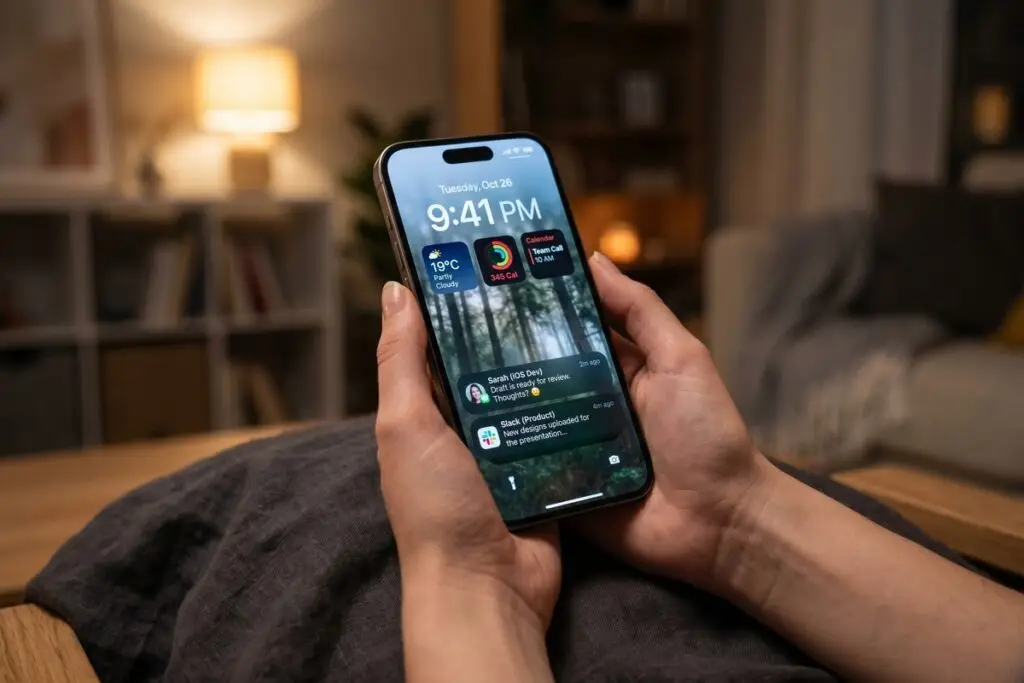
You can add up to 4 small widgets or 2 medium widgets below the clock, plus one widget above the clock. To access the editor, press and hold the lock screen, then tap “Customize.” Supported widget types include Calendar, Weather, Fitness, Reminders, and third-party apps like Fantastical and Carrot Weather.
Which Apps Offer the Best Lock Screen Widgets?
First-party Apple apps — Calendar, Clock, Activity, Reminders, and Weather — are the most stable and fastest to refresh. Third-party apps that have adopted Apple’s WidgetKit framework can also deliver real-time data, including package tracking, stock prices, and air quality readings.
The key limitation is refresh rate. Widgets do not update continuously — Apple throttles background refresh to preserve battery life. High-priority widgets like Calendar and Reminders update within seconds of a change; lower-priority ones may lag by several minutes.
Key Takeaway: iPhone lock screen widgets, introduced in iOS 16, support up to 4 small widgets below the clock. Apps built on Apple’s WidgetKit refresh automatically — making your lock screen a live dashboard without ever unlocking your phone.
Can Live Activities Really Replace App-Checking Habits?
Yes — Live Activities are one of the most underused iPhone lock screen tricks available today. They display real-time, auto-updating information — like a sports score, food delivery status, or ride-share driver location — directly on the lock screen and Dynamic Island.
Apple launched Live Activities with iOS 16.1 and expanded the API significantly in iOS 17. Apps like Uber, DoorDash, Flighty, and ESPN actively use the feature. A Live Activity stays on screen for up to 8 hours, then archives to the Notification Center for an additional 4 hours before expiring.
The practical implication is significant. Instead of opening DoorDash every 3 minutes to check your order, the lock screen tells you exactly where your driver is. Instead of refreshing your flight app, Flighty pushes gate changes and delays the moment they happen. This is the essence of a phone that works harder while sitting still.
“The lock screen is the most-viewed surface on any smartphone. Users glance at it dozens of times per day — and most of those glances result in no action at all. That is a massive missed opportunity for ambient awareness.”
Key Takeaway: Live Activities persist on the lock screen for up to 8 hours and update in real time via Apple’s ActivityKit. Enabling them for delivery, travel, and sports apps eliminates the need to repeatedly open those apps throughout the day.
How Do Lock Screen Shortcuts and Focus Modes Work Together?
Each lock screen profile can be tied to a specific Focus Mode, and each Focus Mode can display a different set of widgets and shortcuts. This means your Work focus shows calendar events and reminders, while your Personal focus shows your fitness rings and weather — all without changing a single setting manually.
You can assign different lock screen profiles per Focus by holding the lock screen, swiping to a profile, and tapping “Focus” in the editor. iOS switches wallpapers, widgets, and notification filters simultaneously when a Focus activates. Apple supports up to 10 custom Focus Modes, each with its own lock screen.
Setting Up Automation Triggers
Using the Shortcuts app, you can trigger automations the moment a Focus activates — without ever unlocking the phone. For example, when Work Focus turns on at 9 a.m., Shortcuts can silence social notifications, set your status in Slack, and enable Do Not Disturb. If you want to go deeper on automating your digital workflow, the principles described in how a solo consultant automated their entire lead pipeline apply directly to phone-level automation as well.
For a deeper comparison of how iPhone Focus Mode stacks up against Android’s equivalent, see this detailed breakdown in iPhone Focus Mode vs Android Bedtime Mode.
Key Takeaway: iOS supports up to 10 custom Focus Modes, each linked to a unique lock screen profile. Combined with the Shortcuts app, Focus activations can trigger multi-step automations — no unlock required, no manual switching needed.
| Lock Screen Feature | iOS Version Introduced | Key Limit |
|---|---|---|
| Custom Widgets | iOS 16 | 4 small or 2 medium below clock |
| Live Activities | iOS 16.1 | Active for up to 8 hours |
| Focus-Linked Lock Screens | iOS 16 | Up to 10 Focus profiles |
| Depth-Effect Wallpaper | iOS 16 | Supported subjects only (people, pets) |
| StandBy Mode | iOS 17 | Requires MagSafe or Lightning charging |
| Always-On Display | iOS 16.1 | iPhone 14 Pro and later only |
What Is StandBy Mode and Why Is It an iPhone Lock Screen Trick?
StandBy Mode, introduced in iOS 17, transforms your lock screen into a full ambient display when the iPhone is charging horizontally. It is one of the most underrated iPhone lock screen tricks because most users do not realize it activates automatically with no configuration required.
In StandBy, your phone shows three rotating views: a large-clock widget panel, a photo-and-widget combo, and a live analog or digital clock face. You can swipe between them and customize each one. According to Apple’s official StandBy documentation, the feature works on all iPhones running iOS 17 — but the Always-On version (screen stays lit without tapping) is limited to iPhone 14 Pro and later models.
The practical use case is strong. Place your phone on a MagSafe charger on your nightstand or desk, and it becomes a smart display — showing upcoming calendar events, the current weather, or incoming notifications at a glance. If you are already thinking about how to use your phone’s built-in tools more intentionally, pairing StandBy with the strategies in how to start using your phone’s built-in screen time tools creates a complete ambient awareness system.
For users exploring deeper iPhone capabilities beyond the lock screen, the hidden iPhone accessibility features that power users swear by covers equally underused system-level tools.
Key Takeaway: StandBy Mode activates automatically on any iOS 17 iPhone when charging horizontally. Always-On display requires iPhone 14 Pro or newer. See Apple’s StandBy support page for full hardware compatibility details.
Are There iPhone Lock Screen Tricks That Also Improve Security?
Yes — and most users ignore them entirely. The lock screen is also your first line of defense, and several settings control exactly how much information is exposed before authentication.
In Settings > Face ID & Passcode, you can toggle which features are accessible on the lock screen: Today View, Notification Center, Control Center, Siri, Reply with Message, Home Control, Wallet, and Return Missed Calls. Each toggle is independent. Disabling Notification Center preview means sensitive messages — from your bank, from Signal, from your email — do not surface until you unlock.
Notification Preview Settings
Apple offers three notification preview levels: Always, When Unlocked, and Never. Setting previews to When Unlocked hides message content on the lock screen while still showing the sender app’s icon. According to Apple’s notification settings guide, this setting applies globally but can be overridden per app in the individual app notification settings.
This matters beyond convenience. If your phone is ever grabbed, picked up, or viewed by someone nearby, notification previews are the most common vector for accidental data exposure. Locking them down is a zero-effort security upgrade. For users who want to build a broader security posture, understanding how to set up two-factor authentication is the logical next step after securing the lock screen.
Key Takeaway: Setting notification previews to “When Unlocked” hides sensitive content on the lock screen without disabling notifications. This single toggle, found in iOS notification settings, prevents accidental data exposure in over-the-shoulder viewing scenarios.
Frequently Asked Questions
How do I add widgets to my iPhone lock screen?
Press and hold the lock screen until the customization menu appears, then tap “Customize” and select the lock screen option. Tap the widget area below the clock to add up to 4 small or 2 medium widgets. This feature requires iOS 16 or later.
What are the best iPhone lock screen tricks for productivity?
The highest-impact iPhone lock screen tricks for productivity are: linking each Focus Mode to a dedicated lock screen layout, enabling Live Activities for calendar or task apps, and adding a Reminders widget below the clock. Together, these three changes surface your most critical information without ever opening an app.
Does StandBy Mode drain iPhone battery?
No — StandBy only activates while the phone is charging, so there is no net battery drain. On iPhones without Always-On Display, the screen dims to near-off after a short period and only wakes when you tap or receive a notification. Apple designed StandBy specifically to run during charge cycles.
Can I use iPhone lock screen tricks without Face ID?
Yes. Widgets, Live Activities, wallpaper customization, StandBy Mode, and Focus-linked profiles all function independently of Face ID. The only features that require authentication are those accessing secure data — like Wallet or Siri reading messages. All display features work on the lock screen regardless of authentication method.
How do I stop notifications from showing on my iPhone lock screen?
Go to Settings > Notifications > Show Previews and select “When Unlocked” or “Never.” For individual apps, go to Settings > Notifications > [App Name] and toggle “Lock Screen” off. This hides the notification entirely from the lock screen while still delivering it to Notification Center after unlock.
Which iPhones support Always-On Display for the lock screen?
Always-On Display is supported on iPhone 14 Pro, 14 Pro Max, 15 Pro, 15 Pro Max, and all iPhone 16 models. It requires iOS 16.1 or later and uses the ProMotion OLED panel’s low-power state to keep the lock screen dimly visible at all times. Standard iPhone models show the lock screen only when tapped or raised.
Sources
- Statista — U.S. Smartphone Users by Operating System
- Apple Developer Documentation — WidgetKit Overview
- Apple Developer Documentation — ActivityKit and Live Activities
- Apple Support — Use StandBy on iPhone
- Apple Support — Change Notification Settings on iPhone
- Apple Support — Shortcuts User Guide for iOS
- Apple — iOS 18 Features Overview