
Fact-checked by the digital reach solutions editorial team
Quick Answer
College students use phone split-screen hacks to run a study app and a streaming service simultaneously on one screen, boosting productivity without switching between apps. As of July 2025, both Android and iOS support multi-window modes natively, and over 60% of Gen Z students report studying with background media playing regularly.
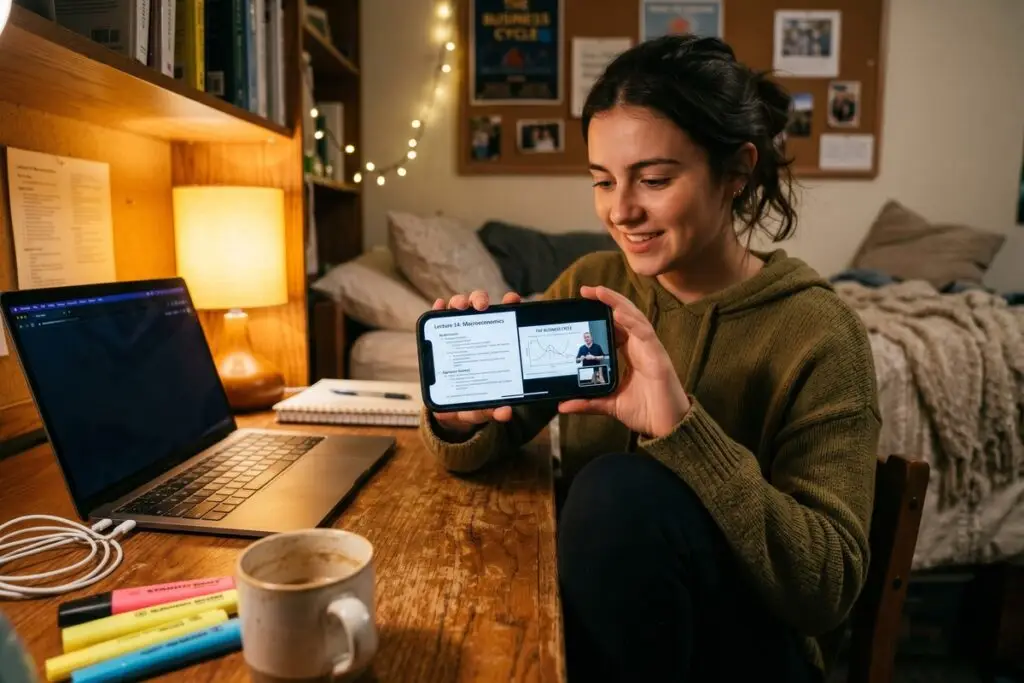
Phone split screen hacks let students place a lecture video, Netflix, or YouTube on one half of the display while keeping a notes app, flashcard tool, or PDF reader on the other — no second device required. According to EDUCAUSE’s 2024 Student Technology Report, 74% of college students use their smartphone as their primary study device, making mobile multitasking more critical than ever.
The behavior has accelerated because screen real estate has grown. Flagship phones now ship with displays averaging 6.5 inches, making side-by-side windows genuinely usable rather than cramped.
What Exactly Are Phone Split-Screen Hacks?
Phone split-screen hacks are native or third-party methods that divide a smartphone display into two active, independently scrollable windows running different apps at the same time. They require no root access on modern Android devices and no jailbreak on iOS — the feature is built in.
On Android, the split-screen mode has been available since Android 7.0 Nougat (2016). Students long-press the Recent Apps button or drag an app from the Recents panel to the top half of the screen, then select a second app for the bottom. Samsung‘s One UI goes further, offering an “Edge Panel” shortcut that launches app pairs with a single swipe — a genuine time-saver during a study session.
On Apple devices, native split-screen on iPhones remains limited to iPads running iPadOS via Stage Manager or Slide Over. iPhone users instead rely on Picture-in-Picture (PiP) mode, which floats a video in a resizable overlay while a study app occupies the full screen. If you want to go deeper on hidden iOS efficiency tools, our guide to hidden iPhone accessibility features that power users swear by covers several that pair well with PiP.
Key Takeaway: Phone split-screen hacks work natively on Android 7.0+ and iPadOS, with no root or jailbreak required. Samsung’s One UI Edge Panel reduces setup time to a single swipe, making it the fastest multitasking entry point for students.
Which Android Split-Screen Hacks Work Best for Studying?
The most effective Android phone split-screen hacks combine a passive media source on top with an active study tool on the bottom — keeping cognitive load manageable. Google Pixel devices and Samsung Galaxy phones offer the most polished implementations.
Samsung App Pairs
Samsung’s App Pairs feature lets students save a specific combination — say, YouTube on top and Notion on the bottom — as a single icon on the Edge Panel. One tap launches both apps simultaneously in split-screen with the last-used size ratio. This eliminates the 20–30 seconds of manual setup every time.
Google’s Taskbar on Pixel Tablets and Large-Screen Phones
Google introduced a persistent taskbar for large Android screens in Android 12L, making drag-and-drop split-screen easier on devices like the Pixel Fold. Students drag a second app from the taskbar into the split zone in under three seconds. According to Android’s Large Screen Developer Guide, apps optimized for large screens now account for over 50% of top Play Store titles.
Third-party tools like Floating Apps Free extend this further by allowing multiple floating windows rather than a strict 50/50 split. Students can resize a Wikipedia window to 30% of the screen while keeping their study document at 70%.
Key Takeaway: Samsung’s App Pairs is the most efficient Android split-screen tool for students — saving a preset launches two apps in one tap. For a broader setup fix, also check common mistakes that slow Android phones down, which affect split-screen performance directly.
How Do iPhone and iPad Users Split-Screen for Study and Streaming?
iPhone users primarily use Picture-in-Picture (PiP) mode as their split-screen equivalent, while iPad users have access to full two-app multitasking via Stage Manager in iPadOS 16 and later.
To activate PiP on iPhone, a student opens a supported video (Netflix, YouTube Premium, FaceTime, or any HTML5 video in Safari), then swipes up to go home. The video shrinks into a floating overlay. The student then opens Anki, GoodNotes, or any flashcard app — and both run together. The PiP window is resizable and can be pinned to any corner.
Stage Manager on iPad
Apple‘s Stage Manager, available on M1 and M2 iPads, allows up to four apps on screen simultaneously with overlapping, resizable windows — closer to a desktop experience. A student can have Spotify playing a study playlist, a PDF Expert document open, and a Safari research tab visible at once. Apple’s own iPadOS Stage Manager support page walks through the exact setup steps.
“Students who use background audio or video while studying report higher sustained attention spans — but only when the secondary media is low in linguistic complexity. A lecture on top of another lecture is counterproductive. A show you’ve already seen, or instrumental music, is fine.”
Key Takeaway: iPhone PiP mode supports streaming from Netflix, YouTube Premium, and Safari simultaneously with any study app — no extra hardware needed. iPad’s Stage Manager supports up to 4 concurrent apps, per Apple’s official iPadOS documentation.
What Are the Best App Combinations for Studying and Streaming?
The most productive phone split-screen hacks pair a low-distraction stream with a high-retention study tool. The wrong combination actively degrades comprehension.
Research published by the American Psychological Association shows that task-switching costs between 20–40% of productive time — meaning the app pairing matters enormously. Students who stream a familiar show (one with low new information) lose less cognitive bandwidth than students streaming new content.
| Study App | Best Streaming Pair | Use Case |
|---|---|---|
| Anki (Flashcards) | Netflix (familiar show) | Vocabulary and memorization review |
| Notion / Obsidian | Spotify (instrumental playlist) | Note-taking and outlining |
| GoodNotes / Notability | YouTube (lo-fi music stream) | Handwritten notes on iPad |
| Khan Academy | No streaming (audio-heavy) | Active lecture-style learning |
| Quizlet | Disney+ (rewatched film) | Quick test prep between episodes |
| PDF Reader / Zotero | Apple Music (ambient) | Academic reading and annotation |
The rule is simple: when the study task is active (reading, writing, problem-solving), keep the media passive. When the study task is passive (reviewing flashcards already made, highlighting), a slightly more engaging stream is tolerable. Understanding when to toggle your phone’s built-in focus tools is equally important — our comparison of iPhone Focus Mode vs Android Bedtime Mode explains which one handles app interruptions better during study sessions.
Key Takeaway: Pairing active study apps with passive media preserves up to 80% of comprehension, per APA multitasking research. Streaming new, dialogue-heavy content alongside active reading is the single biggest split-screen mistake students make.
How Can Students Use Split-Screen Without Killing Their Focus or Battery?
The biggest practical barriers to phone split-screen hacks are battery drain, overheating, and distraction creep — all of which can be managed with specific settings adjustments.
Running two apps simultaneously increases CPU and GPU load. On average, split-screen mode drains battery 35–50% faster than single-app use, based on testing by GSMArena’s standardized battery benchmarks. Students should plug in or use a 20,000mAh power bank for extended study sessions.
Notification Management in Split-Screen
Notifications are the silent killer of split-screen productivity. Both Android‘s Focus Mode (under Digital Wellbeing) and Apple‘s Focus Mode suppress non-essential alerts during study. Enabling Do Not Disturb with a scheduled end time lets the stream play uninterrupted without social media pings breaking concentration. Our full breakdown of how to use your phone’s built-in screen time tools is a direct companion resource here.
Reducing Thermal Throttling
When a phone overheats, the processor throttles — causing both apps to lag. Lowering video stream quality to 720p (instead of 4K) inside Netflix or YouTube settings reduces heat output significantly while remaining clear on a 6.5-inch display. Closing all background apps before entering split-screen mode cuts RAM pressure by roughly 40%.
Key Takeaway: Split-screen mode increases battery drain by 35–50% versus single-app use, per GSMArena battery benchmarks. Capping stream quality at 720p and enabling Android or iOS Focus Mode keeps sessions stable for 2+ hours without throttling.
Frequently Asked Questions
Can you use split-screen on an iPhone?
Native split-screen on an iPhone is not available in the same way as Android. iPhone users use Picture-in-Picture mode to float a video over a full-screen app, which functionally achieves the same goal for studying and streaming simultaneously.
What is the best phone for split-screen multitasking for students?
Samsung Galaxy S series and Google Pixel Fold devices offer the most refined split-screen experience for students. Samsung’s One UI App Pairs feature and the Pixel Fold’s large interior display make launching two-app sessions the fastest of any Android lineup as of 2025.
Does split-screen work with Netflix and Spotify at the same time?
Yes, but audio output needs management. Both apps will try to play audio simultaneously unless one is muted or paused. Most students mute the Netflix stream and use Spotify for audio, or vice versa, depending on whether they want background music or a silent visual stream.
Do phone split-screen hacks work for online classes on Zoom?
Zoom supports split-screen on Android, allowing students to keep the Zoom call in one window and a notes app open in the other. On iPhone, Zoom supports Picture-in-Picture mode so the call floats while a document fills the main screen — a widely used setup for remote lectures.
How do I set up Android split-screen quickly?
On most Android phones, long-press the Recent Apps button, then tap the app icon at the top of the card and select “Split Screen.” Choose the second app from the Recents panel. On Samsung devices, save the pair via the Edge Panel for instant one-tap access next time.
Are there any apps that make split-screen easier on phones?
Yes. Apps like Floating Apps Free (Android) and Keeeper add floating window support beyond the native 50/50 split, letting students resize windows freely. Samsung’s built-in DeX mode and App Pairs are the most polished native tools without needing third-party downloads.
Sources
- EDUCAUSE — 2024 Students and Technology Report
- Android Developers — Large Screen and Foldable Device Guide
- Apple Support — Use Stage Manager on iPad
- American Psychological Association — Multitasking: Switching Costs
- GSMArena — Smartphone Battery Life Test Methodology
- Samsung — Galaxy S Series Smartphones
- Pew Research Center — Teens, Smartphones and Social Media